How to Use Claude AI for Job Applications in 2026 (Beats 99% of CVs)

CAREERS
How Do You Use Claude AI for Job Applications in 2026?
In short: Recruiters spend no more than 1 to 2 minutes on a CV, so a version tailored to each job description is what survives the screening.
Key takeaways
- Recruiters spend no more than 1 to 2 minutes on a CV, so a version tailored to each job description is what survives the screening.
- Claude Code turns a general CV plus a pasted job description into a role-specific CV in seconds, then fixes layout and wording on request.
- Sorting listings newest-first and setting LinkedIn email alerts gets your application in before other candidates reach the interview stage.
Tailoring a CV by hand for every role takes hours, so most applicants send the same generic document everywhere. Ani Björkström, a tech consultant based in Stockholm, uses a three-part workflow: find roles the moment they are published, let Claude rewrite the CV for each job description, and let Claude draft the application answers.
Where should you look for jobs first?
Start on the platform that matches your situation: LinkedIn for employment, or curated broker lists for freelance work — in Sweden, Anna Leijon's list of consultant broker sites is a strong starting point. Always sort listings newest-first, because recruiters review CVs continuously and may stop taking new candidates once interviews have begun.
On LinkedIn, saved-search alerts do the timing work: search a role such as "data analyst," apply filters like contract type or "past week," then click set alert. New matching postings arrive by email before the queue forms.
Why does your CV need tailoring for every role?
Because recruiters never spend more than 1 or 2 minutes on a CV, and many filter applications with screening tools first. A LinkedIn profile is a generic document; a CV adjusted for one role puts every skill named in the posting where a two-minute scan will find it.
How does Claude create the tailored CV?
Upload your general CV to Claude Code, paste the full job description, and ask for a new CV highlighting the skills wanted for that role. Claude extracts the relevant skills from your general profile and rebuilds the document for the specific job — for the data scientist role in the video, the first version was ready in seconds.
The first draft is a starting point, not the final file. Follow-up prompts fixed misaligned headlines and profile-section text; one click then downloads the finished CV.
| Application step | How Claude is used |
|---|---|
| Tailored CV | Upload the general CV, paste the job description, ask for a role-specific version |
| Layout fixes | Prompt to realign headlines and profile text |
| "Tell us about yourself" | Claude answers from the job description already in the chat |
| Cover letter | Provide both the job description and your CV so the letter stays factual |
Can Claude write the application answers too?
Yes — when the portal asks you to "tell us a little about yourself," paste the question into the same chat and ask Claude to answer from the job description above. Copy only the actual reply into the form — nothing more, nothing less.
The same applies to cover letters — always attach both the job description and your CV. Done manually, a new CV per role would take hours; this loop takes minutes per application.
FAQ
Should I use my LinkedIn profile or a custom CV when applying?
Use a custom CV. A LinkedIn profile is generic by design, while a CV rewritten for one role highlights exactly the skills in that posting — decisive when a recruiter spends at most 1 to 2 minutes reading.
Why does application timing matter so much?
Recruiters check incoming CVs continuously; apply late and other candidates may already be in interviews, with the recruiter unwilling to add anyone new. Newest-first sorting and LinkedIn alerts keep you at the front of that queue.
Can Claude write my cover letter as well?
Yes, but paste in both the job description and your CV first, so the letter is grounded in your actual background instead of generic filler.
Full transcript of the video (1,368 words, 10 sections)
Chapters: 0:00 Intro and Goal · 0:12 Find Jobs Fast · 1:17 LinkedIn Alerts Setup · 2:57 Pick a Role to Apply · 3:21 Why Tailor Your CV · 4:54 Create CV With Claude · 6:08 Refine and Download CV · 6:59 Upload and Apply · 7:43 Wrap Up and Next Steps
0:00 Hi, my name is Annie. I'm a tech consultant based in Stockholm. In this tutorial, I will show you how to use cloud when applying for jobs. Let's get started. So, step one is logging into the platform that you will use for finding job. If you are looking for employment opportunities, you can start with LinkedIn. But for my case, I'm based in Sweden and I'm looking for freelance opportunities. So, for that reason, I will use a list that one of Swedish consultant profiles, Anna Leijon, put together. I will start with the first one that is Imagine. And here, you can see all the jobs that are available. When you send your CV, the recruiter will ongoingly check the CVs and choose the right people.
0:48 And if you are late in the process, it might be so that some people already did some interviews and the recruiter might not be willing to take in a new candidate in the process. So, for that reason, it's very important to see what is the published date and take the opportunities that were published as soon as possible. So, here you can see that I have the filter newest first, which means that the newest opportunities are published first in this list. And that is how I will prioritize the jobs. And if you are using LinkedIn, the best option in the LinkedIn is creating notifications. For example, if you are searching for contract consultant role, let's say. So, this is what you're looking for. Then you want to save these search results so that as soon as there is a new opportunity that will be filtered by contract consultant, you will get an email about that and directly apply before others will do.
1:43 Click on this button that says set alerts. Now, for example, the alert is created. And you can be, of course, a lot more specific. Maybe instead of writing contract consultant, you can write data analyst. Yes, and then in here you can define which type of opportunity you want on site, remote, hybrid. For me, everything works, so I will not use this filter. Then there is experience level, date posted. For example, here you can just choose past week. Then you can click on all filters and from here you can even choose more filters. You can see that you have the company, experience level, and sorted by job title. So for me, contract is interesting, so I will choose contract and show those results.
2:34 And now we have all the contracts for a data analyst role. And then we will click on the set alert. Alert will be set and we will get notifications sent to our email address as soon as there are new opportunities. So that's the way of getting the job opportunities as soon as possible and this will give you the chance to be ahead of other applications. Now, if we go back to Imagine website that I was using, so here you can see that we have data scientist opportunity, something that I'm interested at and I will click on the job. This sounds interesting to me. In order to apply for this job, I will click on apply for this job button. Login with single sign-on using my Gmail account. That's up to you. You can login as you like.
3:21 And then after that you can see that it asks me to tell a bit about myself and also to either use my LinkedIn CV or my own CV. So what I recommend is using your own CV because your LinkedIn profile as updated as it can be is a generic profile. However, you can adjust your CV just for this role. So what do you do at this stage is adjusting your CV for this role and that is when you will use Cloud. If you login into Cloud, then you will upload your general CV, which is not adjusted for this data scientist role. It's just a general CV. For me, it's this one. I will open it, and I will also show it for you. You can see that it's just general CV.
4:07 It's a consultant profile, which means that I have information about myself, and then I have my skills, education, and of course, I did a lot of different projects, so I have a lot of different skills. And what is important when you apply for the job is to show the recruiter that you have the skills that are in the job opportunity. Because the recruiters do not have time, either they will use some type of tool to filter different CVs and understand which ones work best, or maybe they will just screen it quickly. But, they will never spend more than 1 or 2 minutes in your CV. So, that is why it is important to make sure that all the skills that are in the job are highlighted in your CV. And to do that, we will use CloudCode.
4:53 So, now, once you saw this, I will just close this, and I will go back to CloudCode. You can see that I uploaded my general consultant profile. Then, I will write, "I want to apply for this job." And here, I will just copy paste all the job description. You will do control A, and you will copy everything, and you will paste it in Cloud. Then, I will say, "Please go ahead and create a new CV for me specifically for this role, highlighting all the skills wanted for this role." And then, enter.
5:42 So, now, Cloud will use CV creation skills, and get a job and we'll extract all the skills that exist in your general CV and we'll define that in a style that will be suitable for this job and we'll keep you back the CV that you can then go ahead and use for applying for this job. This process can take a couple of seconds, so we will come back when it is done. We have a result. Cloud created the CV specifically for data scientist role. So, one thing that I want to update with this CV is the titles. You can see that those are not well aligned. So, I will write, "Please update the headline to be aligned with the text underneath." And then we will hit enter button.
6:30 Also, in terms of the coloring, we can define if those are the colors we are going for or we want to update those. Here, I can see that core competencies, professional experiences looks good, but what I still do not like is the profile section because you can see that this is not aligned and I will ask Cloud to align the text on the profile section with the profile headline. So, we will download the CV by clicking on download button and then we will go back to our job opportunity in here and from here we will just upload the CV. We'll click on all CV and we'll upload CV only for this job. Here it is. In the next step, it says, "Tell us a little about yourself." So, we will copy this and we will go back to Cloud and ask Cloud to write this based on the job description above.
7:28 We have a result. It is important to copy-paste only the actual reply and nothing more, nothing less and then we will put it in here. And everything looks good, so we'll just click on apply button. Think if you had to do this manually, it will take you a lot of hours to create a new CV for each role. So, that is why Cloud is an excellent opportunity to create your CV, and then you can iterate, you can ask Cloud to change things that you do not like as we did. Then you can even create your motivation or cover letter using Cloud, but please make sure that you pass the job description and your CV so that it will be about yourself and your background. And I hope this was helpful, and see you in the next one.
Want this working inside your finance team?

Ani Björkström — founder of QvantX Sweden AB, a Stockholm consultancy building AI solutions for banks, asset managers and finance teams. Anthropic partner. Every article starts from a real client build, minus the confidential parts. LinkedIn →
Keep reading — Careers
 How to get your dream job in Asset Management Industry!
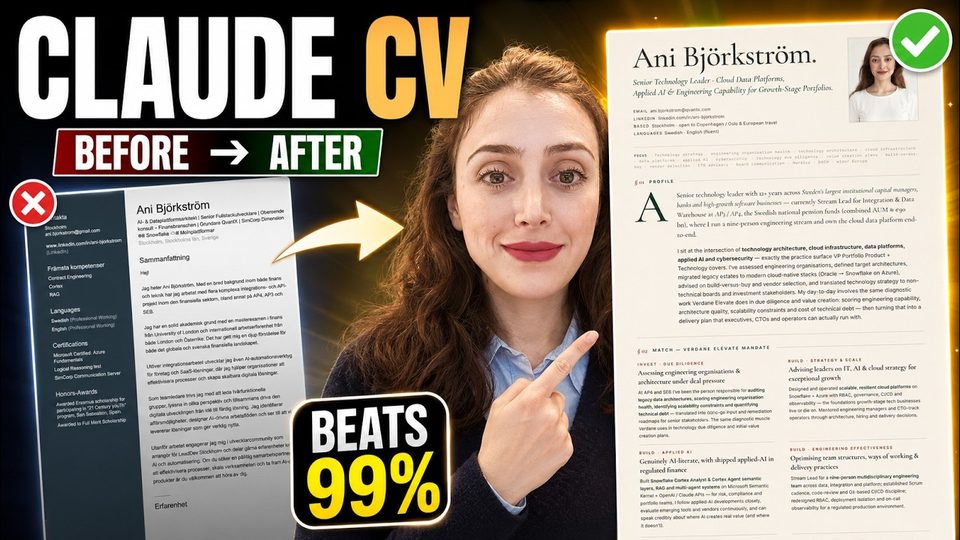 How to Use Claude Design for Job Applications in 2026 (Beats 99% of CVs)
 I Built an AI Agent That Found 2,002 Jobs For Me (No Code)
More: all 54 articles · Claude vs ChatGPT for finance · best AI tools for finance teams · work with QvantX