Google's Nano Banana with n8n | FREE TEMPLATE
AUTOMATION
How Can You Generate Product Photos with Google's Nano Banana in n8n?
In short: A five-step n8n workflow turns an uploaded product photo into a generated image of a chosen male or female model holding the product, using Google's Nano Banana (Gemini 2.5 Flash Image Preview).
Key takeaways
- A five-step n8n workflow turns an uploaded product photo into a generated image of a chosen male or female model holding the product, using Google's Nano Banana (Gemini 2.5 Flash Image Preview).
- The image must be converted to base64 before the API call, then converted back from base64 to a PNG file after generation.
- Nano Banana's API is no longer free on OpenRouter, so the workflow calls Google's Gemini endpoint directly with a key tied to a paid Google Cloud project; new accounts get roughly $250 in free credit.
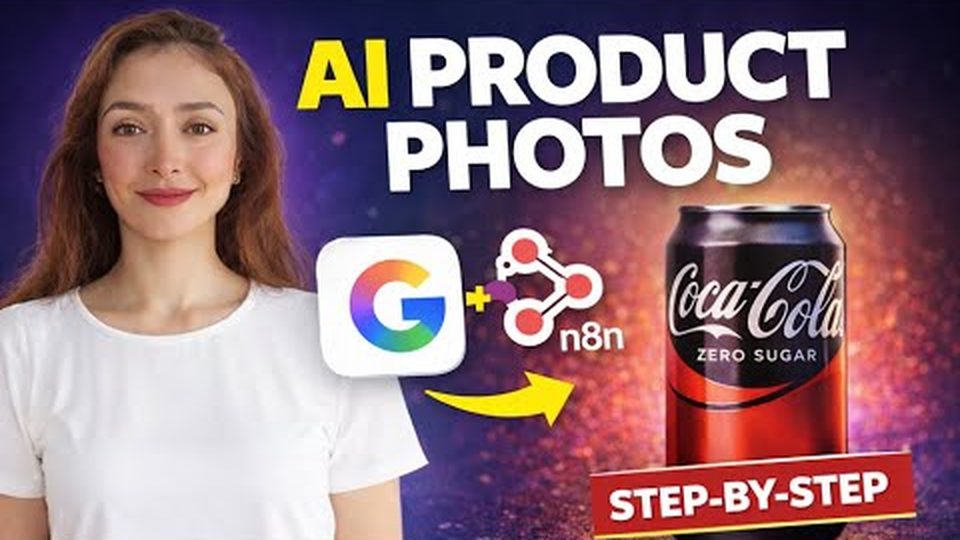
Product photography is an obvious early win for image models, and this n8n build shows the pipeline end to end. In the demo by Stockholm-based tech consultant Ani Björkström, a Coke Zero picture goes in through a form, a female model is selected, and a finished image of a woman drinking the Coke Zero downloads to the computer in one workflow execution.
How does the workflow collect the product image?
It starts with an n8n form submission trigger with authentication set to none, a title, a description, and two fields. The first, "product image," has element type file restricted to PNG and JPG, the formats product pictures normally use. The second, "character model," lets the user specify male or female, defining who will hold the product in the generated image.
Why do you need to convert the file to base64?
Because Nano Banana consumes images as base64-encoded text, not as raw PNG files. The second node, Extract from File, converts the submitted image/PNG binary into base64 text so it can be embedded in the JSON body of the API request. After generation, a Convert to File node reverses the process, taking the base64 data returned by the API and turning it back into a plain PNG.
How do you call the Nano Banana API directly?
The HTTP Request node sends a POST to Google's generativelanguage.googleapis.com endpoint using the generateContent function and the model gemini-2.5-flash-image-preview, with a JSON body carrying the instruction text, the chosen gender from the form, and the base64 image referenced from the Extract from File node. Nano Banana's API was free on OpenRouter a few weeks earlier but is now paid there, which is why calling Gemini's URL directly is the better option.
| n8n node | Purpose |
|---|---|
| On form submission | Collects the product image (PNG/JPG) and the male/female model choice |
| Extract from File | Converts the uploaded image to base64 text encoding |
| HTTP Request | POSTs the prompt, gender, and base64 image to gemini-2.5-flash-image-preview |
| Convert to File | Turns the returned base64 data back into a PNG |
| Form ending | Returns the binary file so the generated image downloads to your computer |
What does the API key setup and cost look like?
Create the key in Google AI Studio under API keys, but note that Nano Banana's API is not free: the key must be connected to a paid project in Google Cloud or it will not work. The cost risk is manageable, since a new Google Cloud account comes with free credit, around $250, and you can create a budget limit that notifies you as soon as a threshold such as $5 is hit.
FAQ
Can I still use OpenRouter to run Nano Banana for free?
Not anymore. The API was free on OpenRouter a couple of weeks before the tutorial, but it is now paid there, so calling Google's Gemini endpoint directly is the recommended route.
What image formats does the form accept?
The product image field accepts PNG and JPG, and the file is converted to base64 before being sent to the model.
How do I get the template?
The full n8n template is shared for free: comment "N8N" under the video and you will receive the link, and the JSON body used in the HTTP request is also copied into the video description.
Full transcript of the video (1,083 words, 10 sections)
Chapters: 0:00 Intro: What we’ll build (AI product image with NanoBanana in n8n) · 0:13 Live demo: Execute Workflow & open upload form · 0:24 Upload product image & choose character model (female) · 0:37 Behind the scenes: workflow sends request to NanoBanana · 0:48 Result: Image generated & auto-downloaded (Cola Zero example) · 1:03 Free template CTA (how to get it) · 1:16 Step 1: Form Submission node (auth, title, description) · 1:37 Field 1: Product image (file; allow PNG/JPG) · 2:13 Field 2: Character model (male/female dropdown) · 2:25 Step 2: Extract file → Base64 (why we convert) · 3:07 Step 3: HTTP Request to Google (NanoBanana/Gemini endpoint) · 3:18 OpenRouter vs direct API (cost & reliability) · 3:40 API details: Generative Language endpoint + generateContent · 4:09 Create API key in Google AI Studio · 4:24 Billing & project setup (why it’s required) · 5:22 Cost control: free credits & budget alerts · 5:46 JSON body walkthrough (model, prompt, image, gender) · 6:43 Step 4: Convert Base64 → File (get PNG result) · 7:36 Step 5: Return file to user (Form Ending page) · 7:48 Save & Execute: full run recap · 8:04 How to get the free template (comment “n8n”) · 8:15 Outro
0:00 Hey, my name is Annie. I'm a tech consultant based in Stockholm. And in this video, I will show you how to create a picture using Google's Nano Banana from a product picture. And before we kick, let's watch a demo. I will click on execute workflow. And from here, we can choose a file. I will choose a coke zero picture. And then we will choose the model. In my case, it will be a female. And then we can click on submit button. Now what will happen? The workflow will consume the picture and will send a message to Nanobanana and will specify for Nano Banana what it needs to do.
0:45 And you can see that the picture was created and it was downloaded into my computer. So if I double click on the picture, we can see a woman drinking color zero p picture that I sent. Great. So if you want to get this template totally for free, wait until the end of this tutorial and I will show you how can you get it for free. So on the first step, we will create on form submission. So if I double click on that you can see that authentication can be none. Then you can have a title and description and after that you will create two fields.
1:30 The first field will be product image and this is where we will upload our image. So that's why element type will be file and we can even specify that file types should be PNG and GPG and because the pictures normally have those types that's why we are specifying PNG and GPG. Then after that if we scroll down we will add also character model because we want to define whether we want a male or a female to hold the product. So we specify male or female and that's basically it.
2:16 Then we can close this and we can go to the next module. Here we are using extract from file and move file to base string. So the why we do this is we do this because when we submit a file the file is uh in PNG format. You can see image PNG and we want to convert it into base 64 text coding format. And the reason that we do this because later on we need to send this picture to nano banana and nano banana will use this base 64 format.
3:07 In the next step if we doubleclick we are sending http request and here I'm using directly nonobanas api. I know that there are a lot of people that are using open router and couple of weeks ago nano bananas API was free on open router. So that was a great idea to use it. But right now nano bananas API is paid in open router and that is why the best option will be using directly geminis URL and you can see that I'm using generative language googleis.com. So this is then the API name and then I'm using the function that is generate content and um I'm using post method.
4:02 We also are using API key and I can show you how to create API key. So if you come to Google studio and then click on API keys here you can see my API keys and you can click on create API key and you can create your API key but keep in mind that Nano Banana's API is not free. So what you need to do you need to connect it with a project in Google's Google cloud. So here for example you can see that uh under credentials I created an API key.
4:59 It's this one. And this is even created or connected to a paid uh account. Otherwise it will not work. But if you are worrying for example about the cost. So when you create a Google cloud account you get some credit I think $250 for free and you can even create a budget limit where as soon as for example $5 limit is hit then you will get a notification. So you can do that if you want to use nano bananas API. And for the body content type I'm using JSON which means that we will write a JSON code.
5:44 And this is the code that I'm using. I will open it. I will also copy paste this in the description so you can easily use the same code. And here I just want to show you. So basically what is happening is that we are sending to nonobanas URL which is model Gemini 2.5 flash image preview. This is the URL we are sending to this URL this text that is saying create this image and so on and we are specifying the image of a and then we are specifying for example the gender because that was something that we choose and then we are even specifying our image that we submitted. So you can see it's uh this JSON data is a reference that is coming from extract from file that we converted from file to encoded 64 code.
6:48 Yes. And then once the image is created we will go to convert to file. And in convert to file what we will do we will now do the reverse engineering. So we will take base 64 file that was returned by nonobanas URL and we will convert it to just a file just a PNG file. So you can see that that's why here under base 64 we will just specify the data. So you will just drag and drop data from here to there and then yeah so this is the picture and you can see that's a excellent picture and in the last step what we need to do we need to upload this data into our computer so we will just choose form and then page type should be from ending and on nm form submission we will choose return binary file and completion title it can be anything that basically we like to call it and that's it.
7:52 Right? Uh and when we you will save it then you will click on execute workflow and the workflow will work as it did in the beginning of this video. If you feel like you want to use this template just comment N8N and I will send this template for free to you. Great. Have a great day.
Want this working inside your finance team?

Ani Björkström — founder of QvantX Sweden AB, a Stockholm consultancy building AI solutions for banks, asset managers and finance teams. Anthropic partner. Every article starts from a real client build, minus the confidential parts. LinkedIn →
Keep reading — Automation
 I Built a Full n8n Workflow in Minutes Using Claude AI (FREE TOOLS)
 Claude Code Skills Just Changed How I Make CVs
 How to build a FREE Lead Generation Machine with n8n + Google Maps + Gmail (Free Template) - 2025
More: all 54 articles · Claude vs ChatGPT for finance · best AI tools for finance teams · work with QvantX