Claude Code Skills Just Changed How I Make CVs
CAREERS
How Can Claude Code Skills Build a Professional CV for You?
In short: Claude Code is a command-line tool with read/write access to your local files, which lets it handle jobs a chatbot cannot, like summarizing a 5,000-page PDF that would break a context window.
Key takeaways
- Claude Code is a command-line tool with read/write access to your local files, which lets it handle jobs a chatbot cannot, like summarizing a 5,000-page PDF that would break a context window.
- A skill is packaged expert knowledge for one task; each skill works like a specialist on a team, the way an SQL developer or designer owns their domain.
- One custom CV skill plus one prompt produced a complete, professional CV: summary, experience, education, certifications, skills, and honors.
Most people meet AI through chatbots. Ani Björkström, a tech consultant based in Stockholm, walked through a different workflow: installing Claude Code in the terminal, teaching it a custom skill, and using that skill to generate a professional-looking CV from a LinkedIn profile.
What makes Claude Code different from a chatbot?
Claude Code is a command-line tool that lets you delegate coding tasks to Claude directly from your terminal, and it can access every file your computer can access. A concrete example: a 5,000-page PDF book is too long to upload to ChatGPT or Claude because of context window limits, but Claude Code can read it locally and write the summary. It can also write entire programs, then test and debug them until they work.
| Dimension | Claude Code | LLM chatbot |
|---|---|---|
| File access | Direct read/write on your machine | Only files you upload |
| Commands | Everything accessible from your terminal | Limited sandbox environment |
| Context | Can see your entire code base | Only the conversation content |
| Best for | Software development | General tasks, writing, questions |
How do you install Claude Code?
Claude Code is available in the terminal, in an IDE, on the web, on iOS, and in Slack; this walkthrough used the terminal on Windows. From the Claude product page, open the documentation, copy the install command for your operating system, and paste it into your command prompt. Confirm the prompt to proceed and you are inside Claude Code.
What is a skill, and how do you create one?
A skill is expert knowledge for a specific task. The analogy is a workplace: a website designer, backend developer, and SQL developer each carry specialist domain knowledge, and each skill plays that same role for Claude Code. Claude ships with default skills, one of which, a presentation skill, built the slides shown in the video, and you are free to create your own. Here, the goal was a skill that gives Claude Code knowledge about CV creation. A prompt drafted in advance with ChatGPT specified the skill, the process, the output, and the formatting; Claude Code turned it into a draft and asked for approval. Choosing "yes, allow edits during this session" let it work without approving every step, and it quickly created a skill.md file, a markdown file of instructions you can open in VS Code.
What did the generated CV contain?
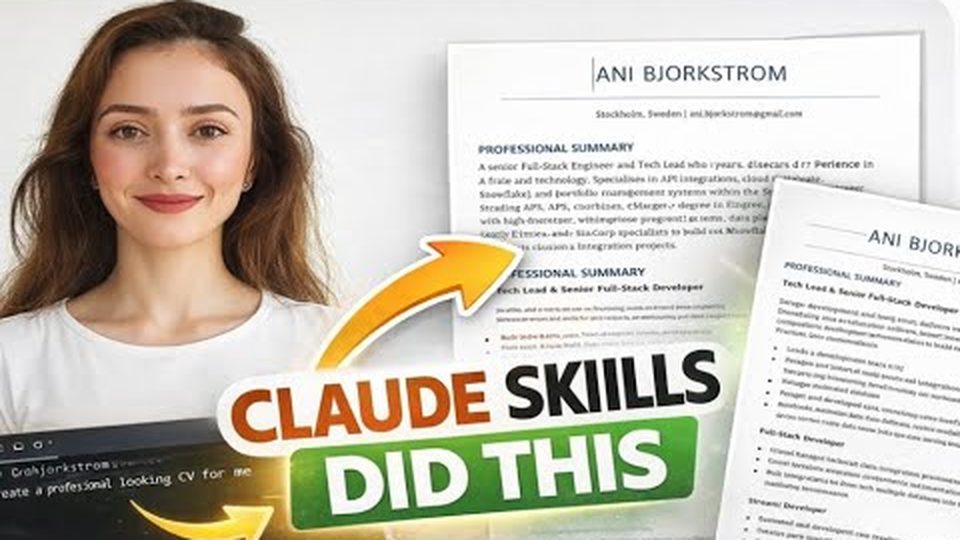
One instruction, "use this skill to create a professional looking CV for me", produced the finished document. The saved CV included a name, professional summary, work experience with all employers, education, certifications, skills, and honors. If you need a photo or other elements, you simply tell Claude Code to add them.
FAQ
Do I need to write the skill instructions myself?
No. In the demo, the skill-creation prompt was drafted with ChatGPT, then handed to Claude Code, which generated the skill.md draft and asked for approval before creating it.
Where does the skill live after creation?
In a skill.md markdown file in the working directory. Opening it, for example in VS Code, shows all the instructions the skill contains.
Can Claude Code do more than CVs?
Yes. It can write, test, and debug complete programs, summarize large local files, and use other skills, such as the default presentation skill used to create the video's slides.
Full transcript of the video (1,109 words, 9 sections)
0:01 Hi, my name is Ani. I'm a tech consultant based in Stockholm. And in this video, I will show you how to use cloud code to create skills and then using the skill to create a professionallook CV. Let's get started. So, first let's try to understand what is cloud code and how it is different from different LLM chatbots like entropic chatbot or chat. The cloud code is a command line tool that lets developers delegate coding task to cloud directly from their terminal. When you install cloud code, it will have access to all the files that your computer has access to. An actual example of this can be when you for example have a book that is 5,000 pages in PDF format and you want a summary instead of reading all the book.
0:49 You cannot upload this book into chat GBT or cloud because it's too long and there will be issue with context window. However, if you install cloud code in your local computer, it will have access to all the files that your computer have access to, which means that cloud code can easily access the book with 5,000 pages and write a summary for you. This is one of the main differences between using a chatbot and using cloud code. But other than that, cloud code can write the whole program for you and it will even do the testing and debugging and it will give you the latest version that will work. And here you can see this presentation was actually created by cloud code using presentation skills.
1:36 You can see the differences between cloud code and LLM chatbot. Cloud code has direct read write on your machine while the chatbot has only files you upload it. Cloud code has all the commands accessible from your terminal and chatbot has limited sandbox environment if you want to run your code. And when it comes to context, cloud code can see your entire code base while LLM chatbot only can see conversational content. Cloud code is best for software development and LLM chatbot is best for general task writing and questions. So this is main difference. Now let's see how we can install cloud code. If you open cloud.com product cloud you can see all the options that you can use to access cloud code.
2:22 So you can access cloud code in terminal or in IDE. Next you can access it in web or iOS. And then the last one is the slack. But in this tutorial, we will use cloud code via the terminal. In order to do that, we will scroll down and click on documentations. I am using Windows operating system. So this is the code that I will use to install cloud code. This is my cmd and then I'm copy pasting the URL that I got from code.cloud.com website. Cloud code successfully installed. Okay. So it asks if we want to proceed and we will say yes. Great. So now we are inside cloud code and in the next step we will create a cloud skill. But before we create a cloud skill let's try to understand what is a cloud skill.
3:11 Cloud skill is expert knowledge for specific task. And for example this presentation was created by cloud code using cloud skill. At work you might have a website designer, backend developer, SQL developer and all of those specialists have special domain knowledge. For example, SQL developer has the knowledge connected to SQL development. Designer has all the knowledge connected to design and that is exactly what we do with skill. Every single skill is equal to a certain specialist. When we are creating a website then we can reference from that design skill that is actually a default skill from cloud. So cloud has some default skills. You can see the list in here but you also free to create your own skills and that is exactly what we will do right now.
4:02 If we go back to cloud code this is basically a catalog in my computer. So here I want to create a skill and aim is to create a professionallook CV using my LinkedIn profile. In order to do this I want to create a skill that will give the knowledge to cloud code about CV creation and a prompt for creating the skill I have already created. I used chat GPT for this. You can see the prompt that I have sent it now to cloud code. You can see the skills that I have specified and then process output and formatting and this can take couple of seconds or maybe a minute and now it created the draft for us.
4:48 This is a draft based on the comment and it ask do you want to create skill and here we can either say yes or you can say yes allow or edit during this session and I will choose this one. You might ask why and the reason is because I already know what is the skill about. I don't want to approve every single step. I just want it to go ahead and [clears throat] to create it. And you can see that it went quite quickly. Here it says create skill.md. And let's go and try to find that file. This is the file. If we try to open this, it will automatically open in VS Code. And you can see that it's a markup file. And here you can see all the instructions that the skill has. Now in the next step, let's go back to our terminal and let's try to create the CV using the terminal.
5:38 Now use this skill to create a professional looking CV for me. Yes. And here you can see that it says your CV has been saved. Let's go and try to read our CV. And we will double click on this to open it. And yeah, so this is basically the CV. You can see that my name, professional summary, and then comes the experience. You can see all the companies that I worked for. Then here you can even see the education and certifications, skills, honors. This is some good-looking CV. And of course, if you need to add some type of picture or other elements, then you will give this information as well to your cloud code.
6:26 I hope this was helpful. And you will continue to use cloud code for creating different skills and agents. Please comment down below what are the skills that you are going to create. Thank you and have a good day. Bye.
Want this working inside your finance team?

Ani Björkström — founder of QvantX Sweden AB, a Stockholm consultancy building AI solutions for banks, asset managers and finance teams. Anthropic partner. Every article starts from a real client build, minus the confidential parts. LinkedIn →
Keep reading — Automation
 I Built a Full n8n Workflow in Minutes Using Claude AI (FREE TOOLS)
 How to build a FREE Lead Generation Machine with n8n + Google Maps + Gmail (Free Template) - 2025
 Google Gemini 3 Pro Wrote My Entire n8n Workflow - 2026
More: all 54 articles · Claude vs ChatGPT for finance · best AI tools for finance teams · work with QvantX