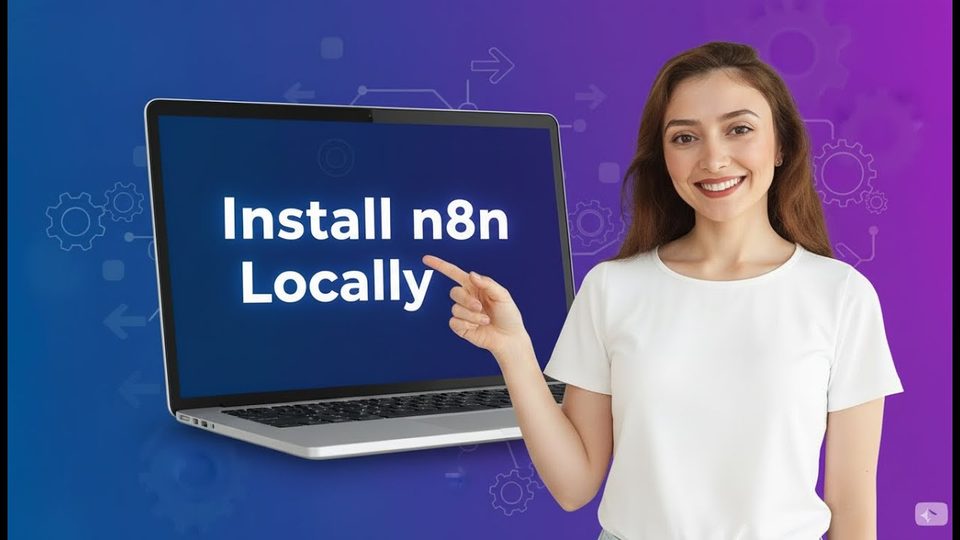
How to Install and Run N8N Locally on Your Computer | For FREE
AI TOOLS
How Do You Install and Run n8n Locally on Your Computer for Free?
In short: n8n is open-source software, so hosting it yourself on your own machine means you never pay for it; installation needs only Node.js and one npm command.
Key takeaways
- n8n is open-source software, so hosting it yourself on your own machine means you never pay for it; installation needs only Node.js and one npm command.
- After running "npm install -g n8n" and then "n8n", the editor is served in your browser at localhost on port 5678, like any web application.
- Scheduled workflows only execute while n8n is running, so a local install is right for testing and learning, not for client work.
In this walkthrough, Ani Björkström, a tech consultant based in Stockholm, installs n8n from scratch on a Windows machine using nothing but the command line. Because n8n is open source, anyone willing to host it themselves can run the full product without a subscription, and the whole setup comes down to three commands.
Why do you need Node.js before installing n8n?
n8n is written in JavaScript, and Node.js is the runtime that executes JavaScript outside the browser, so n8n cannot run locally without it. To check whether it is already installed, open your command line interface and type "node -v"; if a version number comes back, you are ready, and if nothing comes back, download the installer for your operating system from nodejs.org, run it from your downloads folder, and Node.js will be installed.
| Command | What it does |
|---|---|
| node -v | Confirms whether Node.js is installed by returning its version |
| npm install -g n8n | Downloads the latest n8n package and installs it globally on the computer |
| n8n | Starts the software and serves the editor in the browser on port 5678 |
What does "npm install -g n8n" actually do?
npm, the package manager for Node.js, looks up the n8n package, finds the latest version, and installs it on your computer. The "-g" flag means global: n8n is installed machine-wide rather than tied to one specific project. If n8n is already present, running the command again simply checks for and fetches the latest version. Expect the installation to take a few minutes; in the recording it finished in four minutes, adding 31 packages and changing around 1,970, and deprecation warnings during the process can be ignored because they require no action.
How do you open n8n once it is installed?
Type "n8n" in the command prompt and hit enter. Your computer then serves the software on a standard port, which normally means localhost on port 5678, and the terminal prints a link confirming the editor is accessible; clicking it opens n8n in the browser, where you can click "create workflow" and start building.
Should you run client workflows on a local n8n install?
No, and the reason is availability. Scheduled scenarios only run while n8n itself is running, so if your computer is off, n8n is not running and cannot execute your scheduled workflow. The local setup is recommended for testing n8n and learning it, while client work needs hosting that stays on.
FAQ
Is a local n8n installation really free?
Yes. n8n is open-source software, which means that as long as you are willing to host it yourself, you do not need to pay for it.
What if "node -v" returns nothing?
That likely means Node.js is not installed. Go to nodejs.org, choose your operating system, download the installer, and run it from your downloads folder before installing n8n.
Will my scheduled workflows run overnight?
Only if the machine and n8n stay running. When the computer is off, n8n is not running and scheduled workflows cannot execute, which is why this setup suits learning rather than production use.
Full transcript of the video (850 words, 8 sections)
Chapters: 0:00 Intro – Why n8n · 0:34 Why Node.js is required · 1:00 How to check if Node.js is installed · 1:33 How to install Node.js (Windows, Mac, Linux) · 2:20 Using npm (Node Package Manager) to install n8n · 4:50 Accessing N8N in Browser
0:00 My name is Annie. I'm a tech consultant based in Stockholm. And today I will show you how to install and run NAN locally on your computer. As you might know, NAN is an opensource software, which means that as long as you are willing to host NAN, you don't need to pay for it. So the first thing that you will do you will open your command line interface and you will try to see if you have NodeJS installed. Now why should you check if you have NodeJS installed or not. So the N8N is a software that is written in JavaScript and NodeJS is a runtime for JavaScript. So in order to run nan locally you need to have NodeJS installed in your computer.
0:51 And in order to check if you have NodeJS installed or not you will open your cmd or command line interface and you will write node and then v for version and you can see that command line interface replied with the version of nodejs. So this means that NodeJS is installed in my computer. Now if you didn't get back a version that can mean that you don't have Node.js installed in your computer. In order to install NodeJS you will go to Node.js.org and then you will click on get NodeJS and from here you will choose your operating system.
1:40 for me is a Windows and then you will click on Windows installer. Once the installer is installed, you will go to your downloads folder and you will run the installed file. And what this will do, it will install NodeJS on your computer. Once that is done, you will come back to your command prompt and here you will try to install N8N. In order to install N8N, you will use NPM and npm is package manager for NodeJS. Then you will write installed then G for global and N8N. So now before we hit enter or I can hit enter and I can try to explain what this command will do.
2:34 So npm which is um installer for NodeJS will look globally for N8N package. It will try to find the latest NAN package and once it finds the package it will install in your computer and the reason we are writing G here is because we want to install N8N in your computer locally. We don't want to connect it to a certain for example project in your computer. And right now you can see that it's starting to install N10. And in my case I actually already had N10 installed. So when I run it one more time it will just check to see if I have the latest version.
3:24 If I don't have the latest version it will get the latest version for me. And here we might need to wait a bit. And once it is installed then we can access N8N via a standard port and that mean that our computer will serve NAT software on a certain port and that in its turn means that we can access the program on our browser as it is a web application. So here it can we can see that is trying to get all the packages and some of them are deprecated for example but you don't need to do anything about this just wait until it will do its job and once uh this will be this will finish then you will just write n here and hit enter and what will happen is that when you go to the port the standard port will normally be local host which means that your server is serving NAN software to your browser and then the standard port will be 5678.
4:46 And now you are in basically here you can come and create your workflows. And one thing that is important to know is also that uh you if you for example want to schedule some scenarios then you need to remember that those scenarios will only run when NN is running. If your computer is off then it mean that NN is not running. So it cannot then run your scheduled workflow. So use this uh version when you are testing for example N8N or when you are um trying to learn NAN but don't use it for your clients and again just installation parts can take couple of minutes and that's totally fine you don't need to do anything about it it will just it will just be installed so now I'm back and you can see that 31 packages were added and 100 1,970 packages were changed in 4 minutes.
5:55 So it took 8 4 minutes to install this. And now we will write n 8N and we will hit enter. Okay. So you can see editor is now accessible via this link. And if we click on that link here, you can see that N opened up and we can you can then click on create workflow and you can create your workflows.
6:42 That's it. Thanks a lot for listening and bye.
Want this working inside your finance team?

Ani Björkström — founder of QvantX Sweden AB, a Stockholm consultancy building AI solutions for banks, asset managers and finance teams. Anthropic partner. Every article starts from a real client build, minus the confidential parts. LinkedIn →
Keep reading — Automation
 I Built a Full n8n Workflow in Minutes Using Claude AI (FREE TOOLS)
 Claude Code Skills Just Changed How I Make CVs
 How to build a FREE Lead Generation Machine with n8n + Google Maps + Gmail (Free Template) - 2025
More: all 54 articles · Claude vs ChatGPT for finance · best AI tools for finance teams · work with QvantX