How to Use Claude Design for Job Applications in 2026 (Beats 99% of CVs)
CAREERS
How Do You Create a CV with Claude Design That Survives AI Screening?
In short: Claude Design turns a plain PDF exported from LinkedIn into a designed CV plus a cover letter addressed to the hiring manager, in a couple of minutes.
Key takeaways
- Claude Design turns a plain PDF exported from LinkedIn into a designed CV plus a cover letter addressed to the hiring manager, in a couple of minutes.
- Claude Design asks targeted questions first: full job description, company name, exact role title, tone of voice, years of experience, and languages.
- Companies with hundreds of applicants often screen CVs with AI, so you can instruct Claude to map your CV to the role for at least a 99% match.
You do not need an existing CV to start; a LinkedIn profile is enough. In this walkthrough, Ani Björkström, a tech consultant based in Stockholm, builds a designed CV and cover letter in Claude Design from a LinkedIn export and a photo, tailored to a real lead architect vacancy on LinkedIn Jobs.
How do you get your CV data out of LinkedIn?
On your LinkedIn profile, click "resources" and then "save to PDF," and LinkedIn generates a PDF of your entire profile. The export contains all the content a CV needs, but visually it is just extracted text, nowhere near impressive enough to guarantee an interview.
That PDF becomes the single source of truth. When Claude Design later asks where to source your experience from, the answer is simply "use everything in the attached profile PDF."
How do you set up the project in Claude Design?
Log in to Claude, choose Design from the left side, create a new project named CV, and pick high fidelity rather than wireframe for stronger color contrast. Then upload two files: the LinkedIn PDF and, optionally, a photo; the video's view is that a picture improves your interview chances, though it remains a personal choice.
With the files attached, paste in a prompt describing the CV you want and send it. Claude Design responds not with a design but with a short interview, because a strong CV is tailored to one specific job.
What questions does Claude Design ask before generating the CV?
Claude Design asks for the full job description first, copied from the LinkedIn posting, in this case a lead architect role. The remaining questions pin down every detail a hiring manager cares about, and "decide for me" is a valid answer wherever you are unsure.
| Question from Claude Design | Answer given in the walkthrough |
|---|---|
| Full job description | The lead architect posting copied from LinkedIn Jobs |
| Company name and exact role title | Both pasted verbatim from the posting |
| Tone of voice | "Decide for me," letting Claude choose an appropriate tone |
| Years of experience | 11+, matching more than 11 years of actual experience |
| Languages and relocation | Swedish and English; not open to relocation |
| Source material and gaps | Everything in the attached LinkedIn PDF plus the photo; no gaps to address |
What does Claude Design deliver, and how do you beat AI screening?
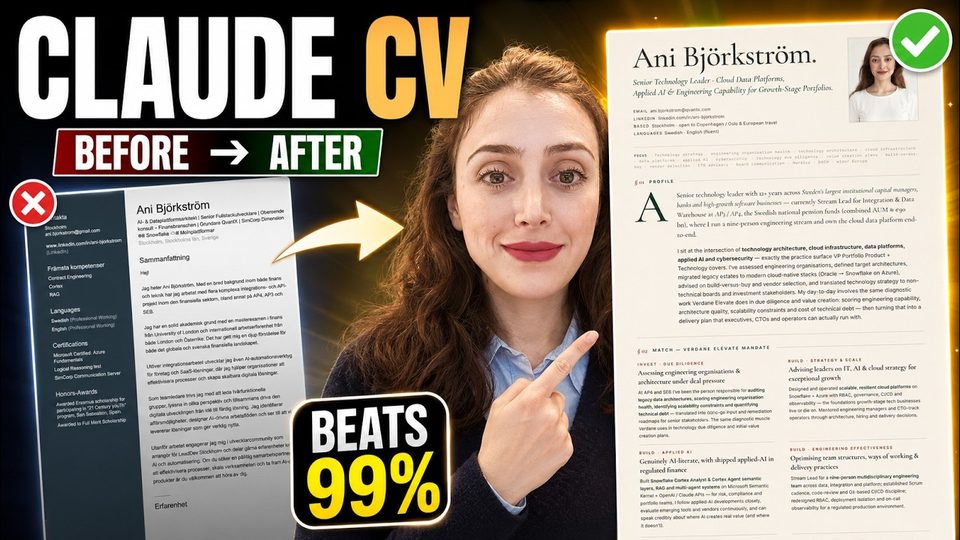
The result is an index.html file containing both a CV and a cover letter: the CV with strong fonts and coloring compared to the plain LinkedIn export, and the cover letter carrying your name, the exact role, and the hiring manager it addresses. You save the CV with a click.
The extra edge targets automated screening: most of these companies receive hundreds of applicants and use some AI tool to shortlist CVs. So add one instruction: "please make sure to map the CV with the role, so that even when an LLM screens the CVs, mine gets at least a 99% match."
FAQ
Do I need an existing CV to use Claude Design?
No. Exporting your LinkedIn profile via "save to PDF" gives Claude Design all the content it needs to build the CV from scratch.
Does Claude Design write the cover letter too?
Yes. The generated index.html contains both the CV and a cover letter that names the role and the hiring manager it is addressed to.
Full transcript of the video (1,002 words, 7 sections)
Chapters: 0:00 Intro: Why Your CV Isn't Getting Through · 0:15 Sign into Cloud Design · 0:45 Extract CV from LinkedIn Profile · 1:20 Upload to Claude AI Designer · 1:50 Paste Full Job Description · 2:15 Customize Years, Tone, Language · 2:45 Claude Generates CV & Cover Letter · 3:10 Preview Design Results · 3:40 The 99% ATS Match Hack (Ask Claude Directly) · 4:10 How to Get the Free Prompt Template
0:00 Hey, in this tutorial I will show you how to create CV looking like this using Cloud Design. Let's get started. So, for this you will login into Cloud IE. Let's make this bigger. And then, from the left side you will choose design. And we will create a new project. We can call this CV. Here you can choose wireframe or high fidelity. I will choose high fidelity because I want a stronger contrast when it comes to my colors. And then I will click on create. Let's say at this point I don't have any CV at all, but I want to create a very impressive CV to get my dream job. So, I will open my LinkedIn and will extract all the information from LinkedIn. This is my LinkedIn profile and from here I will first extract my CV and then I will use the CV in Cloud Design to create a nice design.
0:53 If we click on resources, we can see save to PDF and you can see that a PDF document was saved. If I go to find this document and try to open it, it looks like this. This is just information extracted from LinkedIn. And I think this is fine because it has all the information that I want to have in my CV. However, it doesn't look impressive enough and I want to create something that will guarantee an interview for me. I will go to Cloud Design and in here we already created the project and I will upload the CV. You can see that the file is uploading. Then I will even upload a picture and this is totally up to you if you want to have a picture on your CV or not, but I think there is more chance to get interview if you have a picture.
1:42 So, I will upload even a picture. Now, the picture is also uploaded. This is the prompt that I will use to create a CV. So, I will copy all of these. And then I will go to Cloud Design. I will pass all this. Okay, next I will go and get the prompt that I created for creating a nice looking CV. I will first choose everything and then we'll copy and then I will go back to Cloud Design and we'll just pass this prompt. And then I will send this and this process can take a couple of minutes. So, I will come back to you once it is done. Here you can see that Cloud is asking some questions. So, the first question is paste the full job description. We can adjust the CV for a certain job.
2:29 We can go to LinkedIn and then to jobs. For example, let's take this lead architect role and then we can just copy this information that is about the job. Once copied, we go back to Cloud Design and here we can paste that. Next, company name. I will copy to make it very obvious for Cloud Design. Next, exact role title. Let's paste also the exact role title which was lead architect. Yes, and then we go back [snorts] to Cloud. We can paste the exact title. Next, it asks tone of voice. Here, if you are not sure, you can always say decide for me and I will choose that option. Next, it asks actual years of experience to state.
3:15 I have more than 11 years, so I will enter 11 plus. Next, language. Oh, I will just insert Swedish and English. And then I'm not open to reallocation and then confirm the name on the CV. And I want to be my name and surname, so it will be Annie Björkström. And now it says source for my experience, use everything in the attached profile PDF. That's the file that we uploaded from LinkedIn. Or we can even give it more information, but I will say use everything in the attached profile and I will also add and my picture because we attached also a picture of me. Then, anything to add beyond PDF, I will add again my picture attached. Any honest gaps you want to address, and there is nothing that I want to address because I didn't have any gap.
4:02 So, we will not enter any information in here, but feel free to do it. And then we will click on continue. Now we have a result. You can see that in index.html file, we have a CV and cover letter. So, let's first open CV and try to understand how it looks. So, it looks quite great. Look at the fonts and also all the coloring. I think it is amazing compared to our initial source CV. So, this looks great and I want to save it. We can just click on save button. And give it a new name. And we can go and check the cover letter as well. So, here we have the cover letter. If we open the general [snorts] option. So, here is the cover letter, and you can see my name, and then the role as well, and also the person that we are sending this.
4:52 This is the hiring manager. So, I think this looks quite amazing as well. Another tips is most of those companies will have hundreds of applicants, and they will use some type of AI tool to screen which CVs suits best to the role. So, you can even ask Cloud when you are creating the CV or cover letter, please make sure to map the CV with the role. So, that even LLM is used for screening the CVs, my CV will get at least 99% match. And if you want to get the same prompt that I used to create this CV comment prompt, then I will send it to you for free. If you like this video, please give me thumbs up, and see you in the next one. Bye.
Want this working inside your finance team?

Ani Björkström — founder of QvantX Sweden AB, a Stockholm consultancy building AI solutions for banks, asset managers and finance teams. Anthropic partner. Every article starts from a real client build, minus the confidential parts. LinkedIn →
Keep reading — Careers
 How to get your dream job in Asset Management Industry!
 I Built an AI Agent That Found 2,002 Jobs For Me (No Code)
 How to Use Claude AI for Job Applications in 2026 (Beats 99% of CVs)
More: all 54 articles · Claude vs ChatGPT for finance · best AI tools for finance teams · work with QvantX