Make Viral Shorts in Minutes with HeyGen + Canva For Youtube, TikTok or Instagram
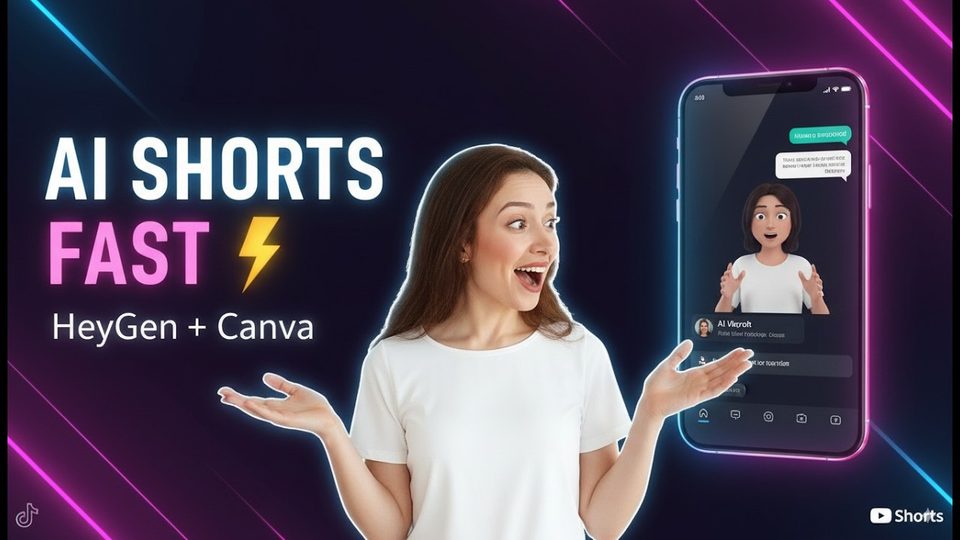
AI TOOLS
How do you make a polished Short with HeyGen and Canva — no editing timeline?
In short: A video made in Canva and set as the HeyGen background replaces the plain white canvas, giving the Short a produced look without any editing software.
Key takeaways
- A video made in Canva and set as the HeyGen background replaces the plain white canvas, giving the Short a produced look without any editing software.
- YouTube Shorts cannot be longer than one minute — the first preview came in at 1:07, and the fix was cutting script text until the runtime dropped just under the limit.
- HeyGen's default voice can be swapped for your own voice imported from ElevenLabs, so the avatar sounds like you rather than a stock narrator.
This workflow builds a complete avatar-led Short inside HeyGen: your own avatar, a script drafted with ChatGPT, a Canva-made background, your cloned voice and styled captions — assembled in the browser and rendered in a few minutes. Ani Björkström, a tech consultant, demonstrated it by producing a Short about Nano Banana ready for YouTube or TikTok.
How do you set up the avatar in HeyGen?
Choose portrait orientation, then replace the default avatar with one of your own from "my avatars". One framing caveat: if you are using Avatar IV, the framing cannot be changed; turn Avatar IV off and you can pick between normal framing, a closer look, or a circle — the circle was the choice for this video, leaving room on screen for the background content.
Where do the script and background come from?
The script is written outside HeyGen and pasted in — here it was drafted with ChatGPT on the topic of Nano Banana, then proofread before continuing. The background comes from the media panel: HeyGen offers a large library of free pictures and videos, or you can upload your own media. In this case the background was a short video created in Canva, uploaded and applied with "set as background" so the avatar sits over custom visuals instead of a white void.
How do you keep the video under the Shorts limit?
Preview before generating, because the preview shows the runtime. The first pass here was 1 minute 7 seconds — over the one-minute ceiling for Shorts — so the fix was deleting part of the script text, which brought the video to a couple of seconds under a minute. Trimming words is faster than trimming footage: the avatar, voice and background all adjust automatically to the shorter script.
What about voice, captions and rendering?
The voice attached by default was a stock voice that happened to be named Annie's voice — not the creator's own — so it was replaced under "my voices" with a voice imported from ElevenLabs. Captions are added from the captions menu; a blue-and-black style was chosen here. Then click generate, name the project, and submit.
| Production step | Setting used in the tutorial |
|---|---|
| Orientation | Portrait |
| Avatar framing | Circle (Avatar IV turned off) |
| Script | Drafted in ChatGPT, pasted and proofread |
| Background | Custom video made in Canva, set as background |
| Voice | Own voice imported from ElevenLabs |
| Captions | Blue-and-black caption style |
Rendering normally takes up to five or six minutes, and HeyGen emails you as soon as the video is created. From there the file is ready to upload to YouTube or TikTok.
FAQ
Do I need video editing software?
No. The avatar, script, background, voice and captions are all assembled inside HeyGen; the only outside tools used were ChatGPT for the script and Canva for the background video.
How long does generation take?
Normally up to five or six minutes. You receive an email as soon as the video is ready, so you do not need to wait in the browser.
Can I use HeyGen's built-in media instead of Canva?
Yes. The media panel includes many free pictures and videos you can set as the background — uploading your own Canva creation is optional.
Full transcript of the video (818 words, 7 sections)
0:00 Hey, my name is Annie. I'm a tech consultant and in this video I will show you how to use hygien to create YouTube shorts or Tik Tok videos. So first you will log into hygien and then you will click then you can choose orientation. We will choose portrait and here you can see that a default avatar is chosen. And I want to choose this I want to change this avatar and I want to instead choose one of the avatars that I have created. So I will just click on that and then I will do looks and from looks I will click on replace avatar and then I will click on my avatars that I created couple of days ago.
0:48 So I will scroll down. I have a lot of avatars. I will scroll down and choose one of the early avatars that I created couple of months ago. So here is my avatar. I will click on the avatar and you can see that right now all the space there is still some space remaining. And normally you can even change the framing here. But if you are using avatar 4 then you can't change the framing. If you for example turn off avatar 4, then you can even choose the framing. You can choose normal which is this one and then you can have another one that is close to its closer look or you can have the circle and I think circle might be good for this video. So I will leave circle.
1:36 Next we will copy paste our text here. So basically what we want our avatar to talk about we need to copy paste it here and I have already created with GPT what I want to talk about I want to talk about nano banana so I will just scroll up copy everything that I want to say here it is and then I will come back to a And I will copy paste everything here. Okay. I will just proof rate this. So everything is fine. Yes. And then the next part that we need to think about is the background because we don't want to leave it white.
2:23 So here we can do click on media and either we can choose already a lot of pictures or videos that already exist in hygien totally free or we can even upload our own media if we created our own media. So we can always do that and in this case I have created my own media via Canva. So I have a short video that I will choose here. Okay. And we can see that it is loading. We will choose this and then we can click on that video and click on set as background. Okay. So here it is. We can maybe scroll our video down and just do the first preview.
3:15 It can take couple of seconds until first preview will start. But the reason I want to do this preview is also because I want to make sure that my video is not longer than oh here you can see that it already says that it's 1 minute and 7 seconds and so we know that we cannot load videos that are longer than 1 minute to uh Google short. So what we will do right now we will go and we will take away or delete some of those texts. So let's try to do it quickly. Okay. So I will delete this part and after deleting that. Okay. You can see that now it's just couple of seconds less than 1 minute.
4:02 So this video looks fine as of now. And uh here you can see that it says that this is the voice and it says that it's Annie's voice is used even though I'm also called Annie. This is not my voice and I want to update it to and I will choose my voices and then I will choose this voice that I imported from 11. I will click on that. Great. So we have this voice as well. And let's do let's hear video and see how it sounds. So it sounded fine. And the next step that I will do is just adding some captions. For example, if you want to have captions, you can always click on captions and choose one of those. I think this one blue one with with black can be fine.
4:54 And then after that we will just click on generate button and we will call it nana banana. And we will submit this. It normally can take uh up to five, six minutes, but as soon as the video is created, you will get an email saying that your video is created. And yes, so that's it. Then you're ready to upload your video either to YouTube or Tik Tok.
Want this working inside your finance team?
Ani Björkström — founder of QvantX Sweden AB, a Stockholm consultancy building AI solutions for banks, asset managers and finance teams. Anthropic partner. Every article starts from a real client build, minus the confidential parts. LinkedIn →
Keep reading — Automation
 I Built a Full n8n Workflow in Minutes Using Claude AI (FREE TOOLS)
 Claude Code Skills Just Changed How I Make CVs
 How to build a FREE Lead Generation Machine with n8n + Google Maps + Gmail (Free Template) - 2025
More: all 54 articles · Claude vs ChatGPT for finance · best AI tools for finance teams · work with QvantX